In this article, you will learn how to use Doctible’s Away Settings to automatically send responses to patients when you cannot answer on your own.
This feature allows for an automated away message to be sent in response to any text message the practice receives outside of business hours.
To set up the away response, you’ll first have to define the office hours in the location details tab.
Please note: Your office hours should already be applied in the location details tab, but we encourage you to double check their accuracy

Using the dropdowns, you can set hours for each day of the week. You will need to set hours for the days that the office is closed and mark it as such.
Now you can edit the message to your liking by navigating back to the Patient Communicator tab and clicking into the settings icon.
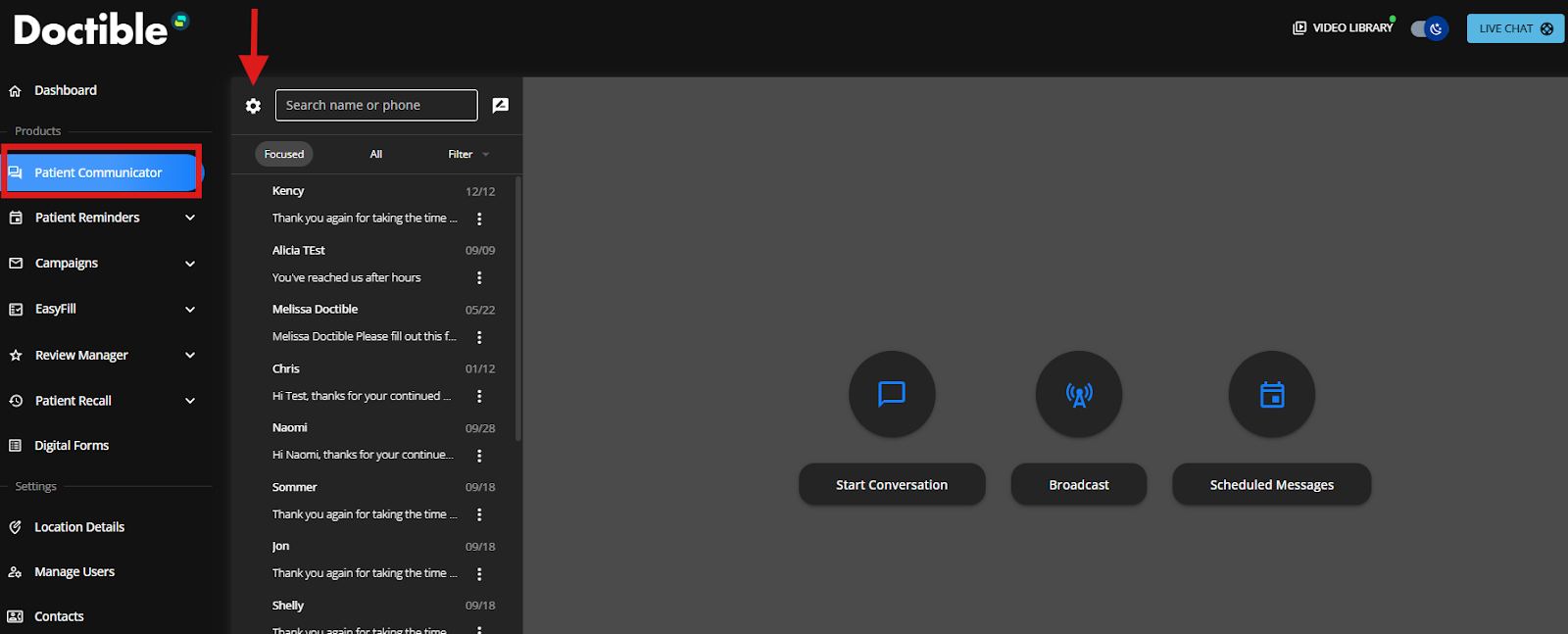
From this page you are able to modify the feature setting as well!
AUTO is the default setting that gives the response to all messages received outside of your business hours.
If you hover over the “i” icon, you will see definitions for the three (3) different settings.
Was this article helpful?
That’s Great!
Thank you for your feedback
Sorry! We couldn't be helpful
Thank you for your feedback
Feedback sent
We appreciate your effort and will try to fix the article